How to send your concert videos to an iPhone (Quick Share to AirDrop)
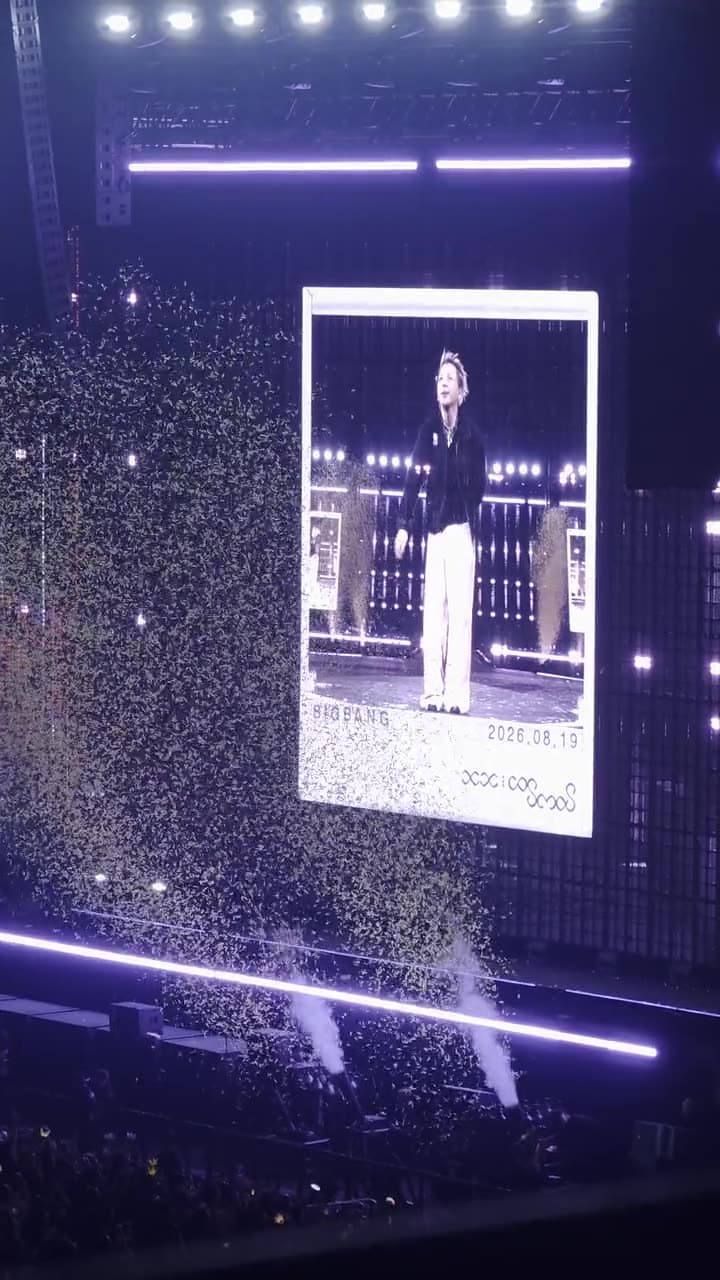
Both of our rental phones can now send photos and videos straight to an iPhone, the same way AirDrop works between iPhones. No cable, no app, no uploading to the cloud first. Google calls it Quick Share, and on the iPhone it simply arrives as an AirDrop.
Here's how to do it after the show, before you return the phone.
Before you start
- Keep both phones close together and unlocked. The transfer uses Bluetooth to find each other and Wi-Fi to send.
- Turn on Wi-Fi and Bluetooth on both phones. You don't need to be connected to a Wi-Fi network.
- Check your iPhone has enough free space. Concert video is big: one renter's two nights came to 32 videos and 18 GB. Settings → General → iPhone Storage shows what you have.
- Plug both phones into power if you're sending a lot. Big transfers take a while.
Step 1: Make your iPhone visible
AirDrop only shows up for the rental phone when it's set to everyone, not contacts only.
- Open Control Centre on the iPhone.
- Press and hold the network box (the one with Wi-Fi and Bluetooth), then tap AirDrop.
- Choose Everyone for 10 Minutes.
After 10 minutes the iPhone switches back to Contacts Only on its own. If it times out halfway through choosing videos, just set it again.
Step 2: Check Quick Share on the rental phone
If your iPhone doesn't appear in the list, check this setting:
- Galaxy S26 Ultra: open the Quick Share settings and make sure Share with Apple devices is on.
- vivo X300 Ultra: open Quick Share from the share menu, go to its settings, and turn on Share with Apple devices.
Step 3: Send the videos
- On the rental phone, open Gallery (or Photos) and select the videos you want.
- Tap Share, then Quick Share.
- Your iPhone appears in the list of nearby devices. Tap it.
- On the iPhone, tap Accept. The videos save to your Photos app.
Big files: send in batches
Phone-to-iPhone transfers are slower than iPhone-to-iPhone AirDrop, and a whole concert can be tens of gigabytes. What works best:
- Send 5 to 10 videos at a time instead of everything at once.
- Keep the screens on and the phones next to each other until each batch finishes.
- Start with your favourite songs, so the important ones are safe first.
If you're short on time or iPhone storage, add the OTG flash drive to your rental and copy everything onto it in one go, or upload to Google Photos or Google Drive over Wi-Fi and download later.
After you return the phone
Before you hand the phone back, copy whatever you want to keep and sign out of any accounts you added. Delete your photos and videos and empty the bin (Samsung Gallery → ☰ menu → Recycle bin → Empty; vivo Albums → Recently deleted → Delete all). Or, if you prefer, you can optionally consent on your private booking page to let ConcertCam SG keep your concert videos and share short clips.
Sources
Last checked 20 Oct 2026.